Accessing the portal
To access the Certification Portal visit https://www.e360community.com/ENT_Community_Login_Frm
Navigating the portal
Chrome is the recommended browser for fastest processing.
Accessing the Certification Portal
Existing Users
Access the Green Communities certification portal by going to the community login page at https://www.e360community.com.
- If you are an existing user, you can login to the portal with your username and password and select “Login.” You will then have access to the certification projects that you have created or to which you have been given access.
- If you have access to the Enterprise LIHTC Community portal and you would like access to the Enterprise Green Communities portal, you do not need to register or create a new account.
Instead, email certification@enterprisecommunity.org to request access to the Green portal and be sure to specify in your request that you have an existing LIHTC portal account.
New Users
If you are a new user, you will need to request access to the portal and create an account.
- Visit the Green Communities certification portal by going to the community login page at https://www.e360community.com.
- Select “need access” to register, and follow the prompts to request a new account in the Green Communities certification portal
- Your registration will be submitted to Enterprise staff, who will then approve your registration request.
- Once the community access request has been granted, users may log in to the certification portal to create projects or access existing projects.
Creating a Certification Project
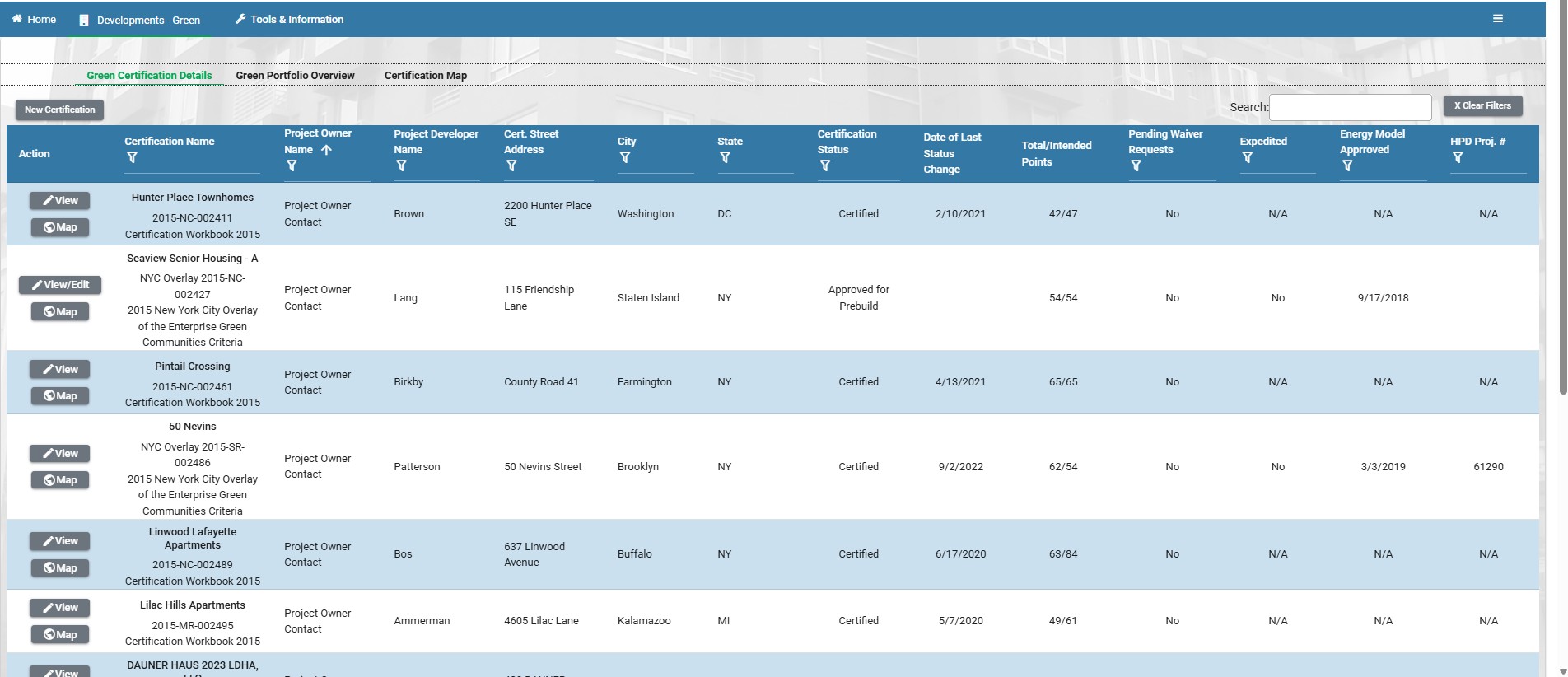
After your Green Community access request has been accepted, navigate to the landing page for Developments – Green
- Select “New Certification” and follow the prompts to create your project. You will be guided through a series of questions about your project.
- Please be sure to accurately complete the certification type prompts; once the project has been created, no edits to the certification type can be made.
Managing Project Access
When you create a certification project in the portal, you're automatically set up as the Project Owner, with full access to view and edit the project. As owner, you'll also see review feedback on any information needed for your submittal, and you'll get email notifications whenever the project's review status changes.
Project owners can grant access to other team members through the project's "Project Overview" tab — scroll to "Development Team" and select "Add a new team member." Two access levels are available:
View/Edit access – Required if the user needs to upload documents or submit the project for pre-build/post-build review. Be sure to also check the "Active" box.
Read Only access – Appropriate if the user should be able to view the project but not upload documents or submit it for review.
Note: Anyone you invite must already have an active E360 portal account. If they don't, they'll need to create one before you can grant them access.
Changing the Project Owner
If the original project owner is unavailable or no longer has access to add new users, email certification@enterprisecommunity.org with:
- Your full name
- Company affiliation
- Project name
- The project(s) you need added to, and a request to receive project notifications
Note: Once a project has been submitted to Enterprise for review, editing is temporarily locked until the review is complete.
Trouble Logging In
A few common issues can cause login trouble:
Multiple accounts:
If you have accounts in more than one Enterprise community, make sure you're using the correct login and email for your Green Communities certification portal account specifically.
Multiple emails on one account:
Some users register with a shared team email, while others use their own. Since project access is linked to a unique email address, double-check that you're logging in with the email tied to the account you intend to use.
Password reset or multi-factor authentication issues:
Email certification@enterprisecommunity.org for help resetting your password or updating your MFA settings.
Uploading and Managing Documents
Uploading
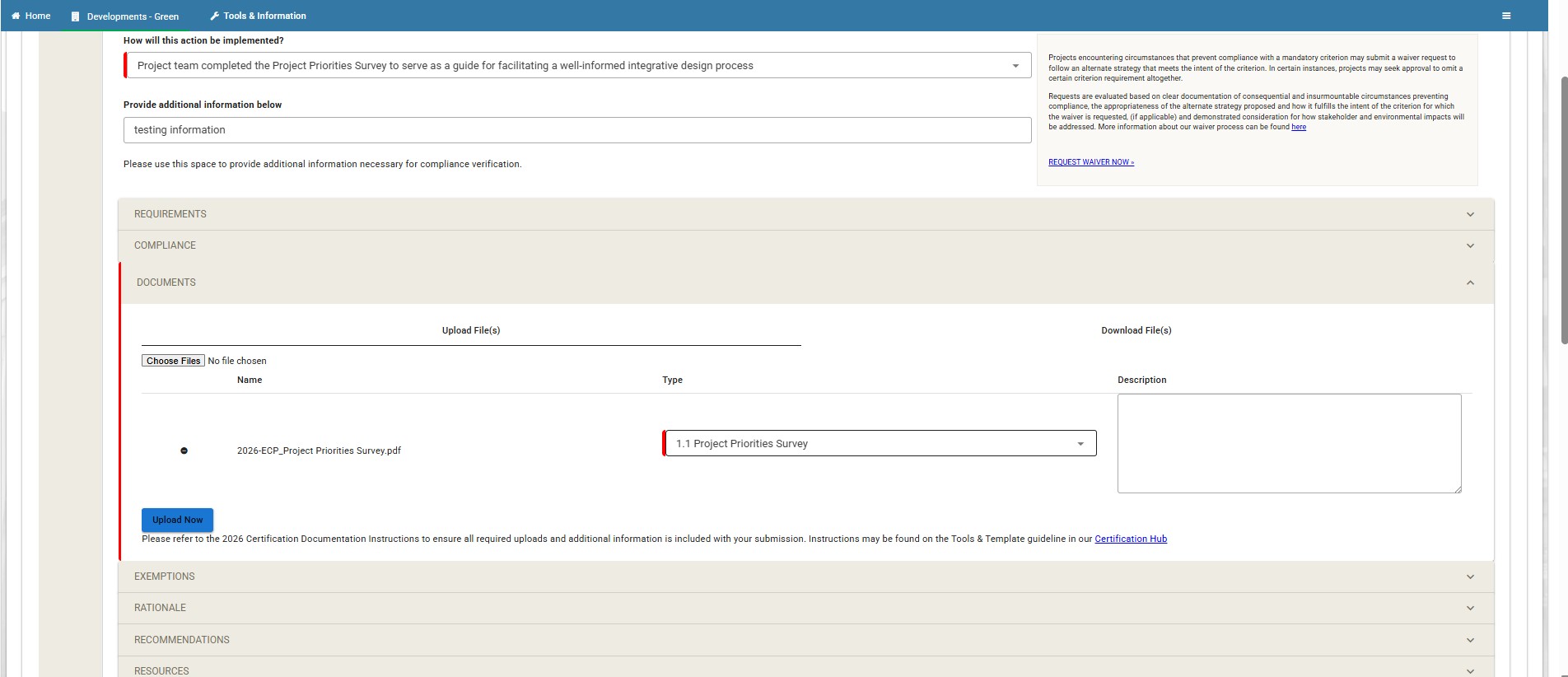
Users with View/Edit access can upload documents to a project. To upload a document for a specific criterion:
Select the criterion the document is required for and open its dropdown.
Open the "Documents" dropdown and go to "Upload Files."
Choose the file you want to upload.
Select Upload Now.
Determining successful upload:
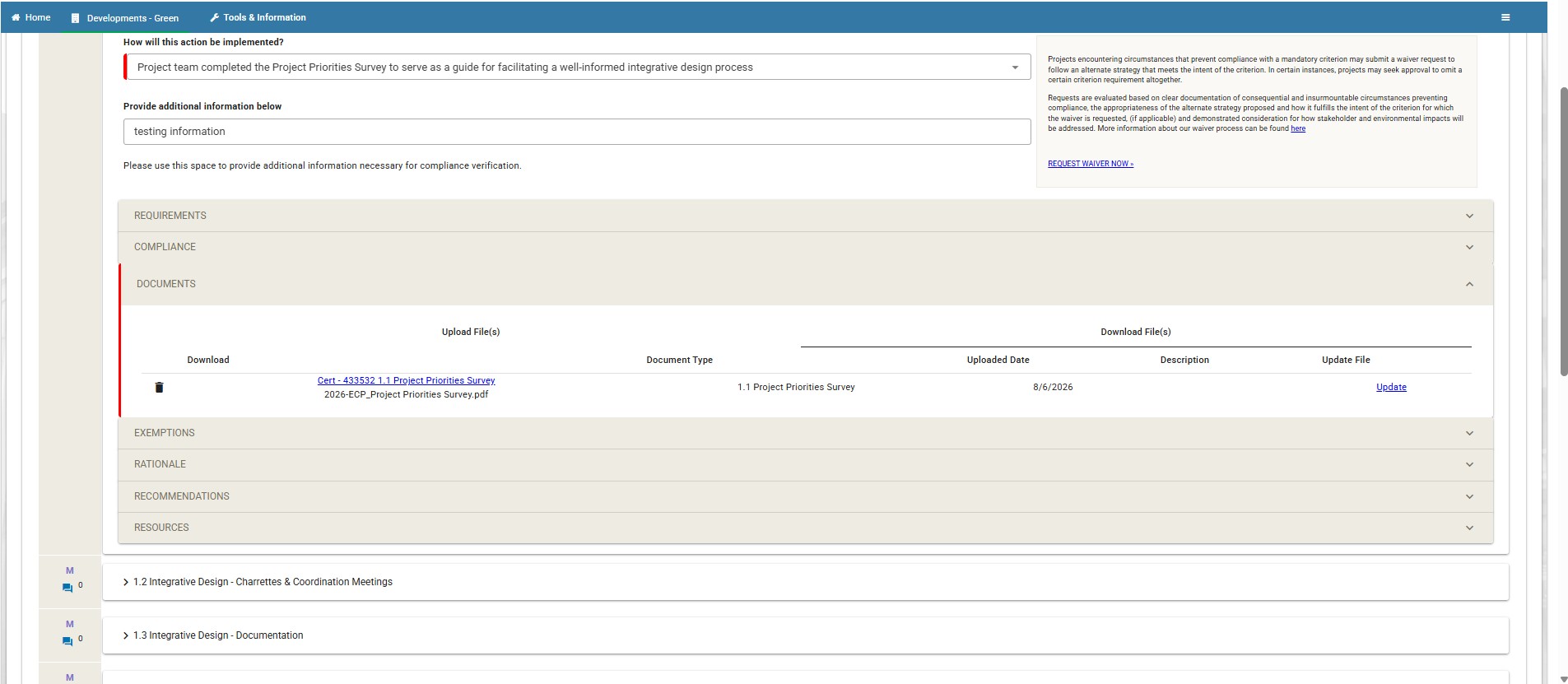
Go to the "Download File" tab, located next to the "Upload File" tab within that criterion.
Any files successfully saved to that criterion will be listed there.
Deleting/Replacing
Both actions happen from the "Download Files" tab for the relevant criterion:
To delete a document, select the trashcan icon next to the file.
To replace an outdated or incorrect document, select the Update button next to the file you want to swap out.
Project Submission and Review
Submitting
Complete all required fields and upload all required supplemental documents.
If any red validation errors appear, follow the prompts to resolve them.
Then go to the Signatures page (under the Project Name tab in the menu bar) and select Submit.
Note:
Projects can't be deleted — this is a safeguard against accidental deletion.
Most teams instead rename old or unwanted applications as "delete" or "old" to distinguish them from active projects.
Certification Review Comments and Status
Viewing Comments
Any user with access to the project can view review comments.
Look for red collaboration bubbles in the Criteria Compliance section of the application — these indicate reviewer comments.
If you have questions about specific comments, email certification@enterprisecommunity.org for the fastest response.
Note: Enterprise will not see or respond to comments left in the collaboration bubbles until the project has been resubmitted for review.
Accessing Review Status
Log into the portal and check your project dashboard on the Green Certifications Detail page for its current status.